
MangaFire lets you export your library as a MyAnimeList XML file, which you can then import into MangaTime.
Here’s how to do it step-by-step:
Step 1: Export your library from MangaFire
Open MangaFire and log in to your account
Tap your user icon in the top-right corner of the screen
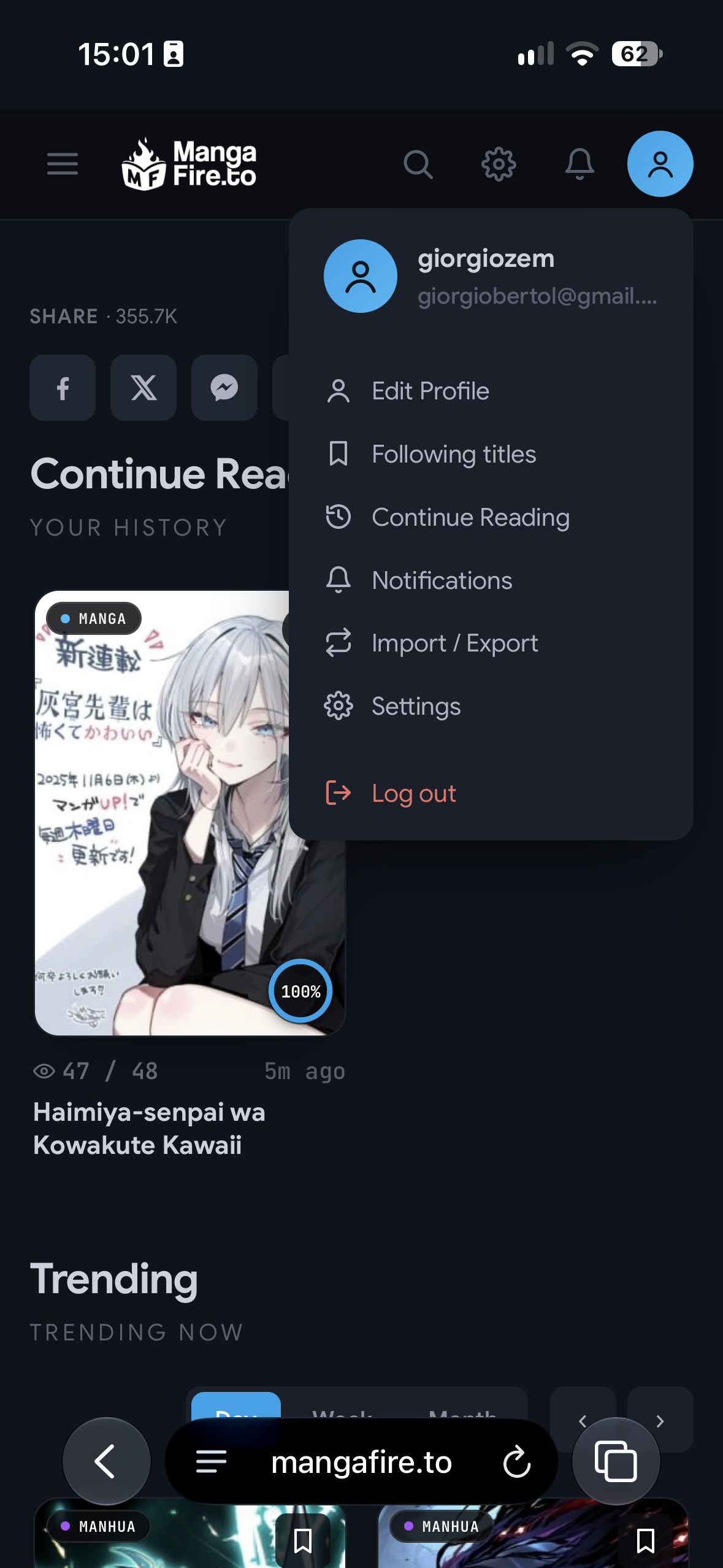
Tap on Import/Export
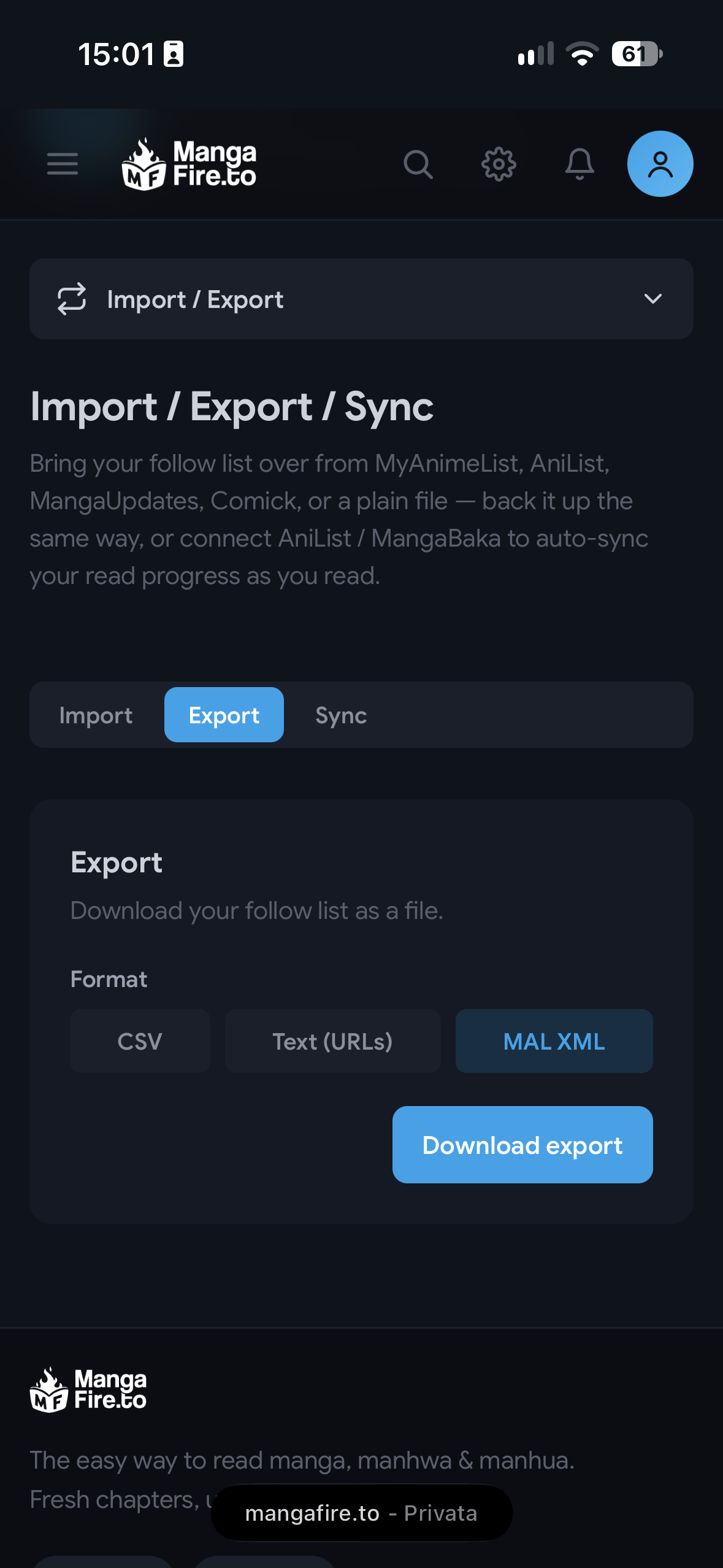
Open the Export tab
Select MAL XML as the format
Tap on Download export: the file will be downloaded automatically
Step 2: Import the file into MangaTime
Open MangaTime
Open the Profile tab using the bottom navigation bar
Open up the Settings page by tapping on the gear icon in the top right corner
Press on Third Party Import, then choose MyAnimeList
Select the XML File tab
Tap on Select XML File and pick the file you just downloaded from MangaFire
Then press on Start Import, wait a few seconds (based on how big your library is) and TADAAA 🎉
What gets imported
Your library: every manga in the exported file
Status: Reading, Completed, On-Hold, Dropped and Plan to Read
Reading progress: the chapters you read. Completed series are marked as fully read
Score: the score you gave each title
Tips & troubleshooting
Why MyAnimeList? MangaFire exports in the same format used by MyAnimeList, so you import it through the MyAnimeList option. You don’t need a MyAnimeList account.
Some titles were not imported? We match manga using the MyAnimeList ID included in the file, so titles without one, or not in the MangaTime catalogue yet, are skipped. You can add them manually or report them to us.
Already have manga in MangaTime? Nothing gets lost: imported titles are merged with your library and chapters you already marked as read stay read.
File too large? The file must be smaller than 10 MB.