
You can export your library from Mihon as a backup file (.tachibk) and then import it into MangaTime.
Here’s how to do it step-by-step:
Step 1: Create a backup in Mihon
Open Mihon on your Android device
Tap the More tab in the bottom navigation bar
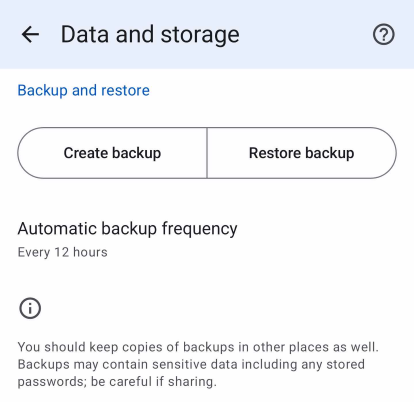
Open Settings and select Data and storage
Tap on Create backup
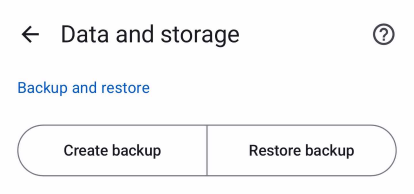
Make sure Library entries, Chapters, Tracking and Categories are selected, then confirm
Choose where to save the file (for example your Downloads folder or Google Drive). The file will end with
.tachibk
💡 Already have automatic backups enabled? You can use the latest file from the autobackup folder inside your Mihon storage location.
Step 2: Import the backup into MangaTime
Open MangaTime
Open the Profile tab using the bottom navigation bar
Open up the Settings page by tapping on the gear icon in the top right corner
Press on Import from Mihon
Tap on Select Backup File and pick the
.tachibkfile you just createdThen press on Start Import, wait a few seconds (based on how big your library is) and TADAAA 🎉
What gets imported
Your library: every manga saved in your Mihon library
Reading progress: the last chapter you read for each title
Status and score: taken from your MyAnimeList or MangaUpdates trackers, if you linked them in Mihon
Categories: your Mihon categories are recreated as custom lists in MangaTime
Downloaded chapters, extensions and custom covers are not part of the import.
Tips & troubleshooting
Some titles were not imported? We match manga using your trackers (MyAnimeList, MangaUpdates), the source link and the title. Titles that are linked to a tracker in Mihon are matched much more reliably, so consider tracking them before creating the backup.
File too large? The backup must be smaller than 10 MB.
Using a Mihon fork (like Tachiyomi, TachiyomiSY or Komikku)? They use the same
.tachibkbackup format, so the same steps should work.